The GemLight Super works perfectly well straight out of the box - just plug it in and away you go.
However, some users may wish to explore the additional functions built into the device which allow the changing of certain parameters, access to the System Log and so on.
When plugged into a powerbank, the GemLight Super behaves exactly as you would expect. However, when it is plugged into a PC, it enters a different mode which enables the advanced functions mentioned above.
In order to make use of this mode, you will need to run a small program called a terminal emulator. There are many of these available free of charge on the internet, one of which is TeraTerm, which you can download by clicking this link: https://tera-term.en.softonic.com/download
The next section explains how to install TeraTerm on your PC. If you already have a terminal emulator installed, just skip on to the following section.
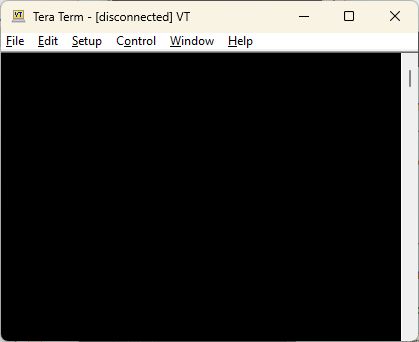
Run the install program that you have downloaded and accept the licence agreement. Open TeraTerm and select the Serial option if the New Connection screen appears. You will then see a black window, possibly with some random characters.
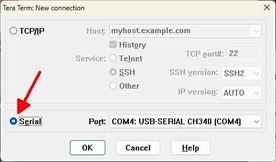
Plug your GemLight Super into a free USB port. If you do not already have a CH340 driver installed you can install one from the website given above - it's a very quick and simple download.
Click on the Setup menu and choose Serial port... from the list. The program should automatically select the correct COM: port to which your device is connected.
Make sure the Speed is set to 115200, then click on New setting.
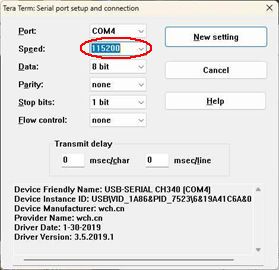
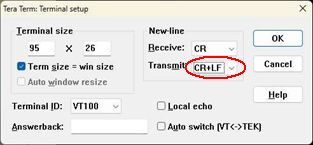
Now select the Setup menu again and choose Terminal...
Change the Transmit option to CR + LF and click on OK.
That's it - you are now ready to go!
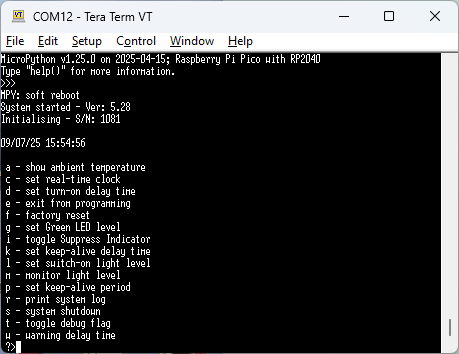
So let's get started. First, we need to run the microcontroller in the GemLight Super. To do this, type ctrl-C followed by ctrl-D. You should get a screen that looks like this:
Now it is possible that you may instead see the main LEDs flash very briefly, and then the normal start-up sequence for the GemLight. In this case, simply unplug the USB cable, reconnect it and type the ctrl-C, ctrl-D sequence once again.
You can ignore all the stuff at the top of the screen, but check the time and date shown above the menu items. This has been set correctly before you received your device, but if you are in a different time zone, you may wish to change this to reflect the correct time.
Just enter a single lowercase c and hit <return>. This will bring up a prompt that reads: "Enter required time as yy,mm,dd,hh,nn,ss". So, for example, enter: "25, 07, 15, 17, 10, 00" and hit <return>. This will set the internal clock to 5:10pm on 15th July 2025. Be sure to use the 24-hour clock.
The other item you are most likely to want to use is print system log. To do this, type a single lower-case r and hit <return>.
This will bring up a prompt that reads: "Enter date range (dd/mm/yy-dd/mm/yy) or <cr> for last night:". The format is important here, so enter something like "13/07/23-15/07/23" if you want to see all the log entries from the 13th July until the 15th July. If you just want a single day (midnight to midnight) you can enter a single date, like "16/07/23" or, if you just want to see last nights results, you can just hit <return>!
The system log will look something like this:
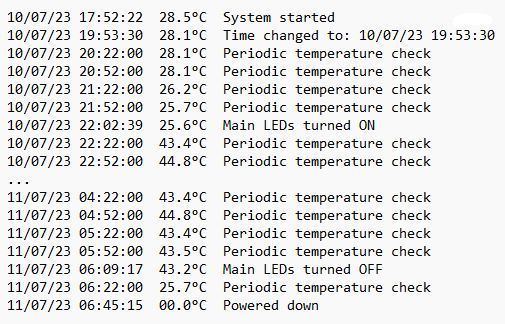
Let's look at what this is telling us.
The system was plugged in at 17:52 on 10th July and the time was then changed to the correct time zone.
The GemLight was put out in the trap and continued to monitor the external temperature every half hour until the main LEDs were triggered by the falling light level at 22:02.
The log then recorded the internal temperature of the device while the main LEDs were on until 06:09, when the brightening sky turned off the main LEDs. Within a few minutes, the GemLight had cooled down to the ambient temperature which was then recorded until the unit was switched off at 06:45.
You can select and copy this text if you wish to print it or save it to a file.
OTHER FUNCTIONS:
Some of the other functions shown in the menu are fairly obvious -
- a - show ambient temperature. This actually shows the temperature inside the GemLight. So if the main LEDs have been off for a considerable time, this will reflect the temperature of the surroundings. If you have just brought the unit inside after a long period of operation, it will show the current temperature inside the unit, which may be as high as 60°C in hot climates.
- e - exit from programming. This will cause the GemLight to operate as if it had been plugged into a powerbank; in other words, as it normally would. The only way to return to programming mode is to repeat the Ctrl-C, Ctrl-D sequence or to unplug the unit and then reconnect it.
- f - factory reset. This could be quite important! If you have been experimenting with settings, and have managed to make the unit inoperable or can't see how to get things back to how you want, this option will return everything to how they were when you first received the unit, except that the real-time clock will not be changed.
- i - toggle Suppress Indicator. When you put the GemLight out in the normal course of events, the indicator will flash green until darkness falls. If you wish to suppress this green flashing, entering i <cr> will stop the flashing of both the green and blue indicators. The warning sequence, to show that the main LEDs are about to come on, will still operate, however. To reset the indicator, just go into programming mode and type i <cr> again.
- l - set switch-on light level. As supplied, the GemLight will turn on the main LEDs when the ambient light reaches quite a low level. However, there may be occasions when you wish to change this. For example, if you are working in an environment where the night sky never becomes really dark, you may wish to bring on the main LEDs a little earlier, by reducing the setting. On the other hand, if you find the main LEDs come on rather sooner than you wish, you can increase the setting. The standard setting is 58000. You will be unlikely to want to choose a setting less than 55000 or greater than 60000. If you go too far, either reset to 58000 or select f <cr> as above.
- m - monitor light level. You can use this option in conjunction with the previous setting. Selecting m <cr> will print the current light level on the screen at one-second intervals. In total darkness, the reading will typically be around 62000. In bright daylight, it may be as low as 1000, To get back to the menu, you will need to type ctrl-C, ctrl-D.
- s - system shutdown. As you might expect, this will shut the system down and then reboot it, effectively performing the ctrl-C, ctrl-D sequence.
- t - toggle debug flag. This is of little use to you as a user unless we ask you to select it for troubleshooting purposes! It will simply print a lot of system messages on your screen, which are more likely to confuse rather than assist you.
MORE ADVANCED SETTINGS:
Some of the remaining functions need to be used with caution, especially k and p, which will be explained later.
- d - set turn-on delay time. You will have noticed that, once the light level falls sufficiently, the green indicator changes to blue, which flashes for about 20 seconds before the main LEDs turn on. There is a similar time delay that occurs when the light level increases, before the main LEDs turn off. The reason for this action is twofold: first, if you are setting the device in the dark, you don't want the main LEDs to come on before you have set out the trap - this would be dangerous for your eyes; second, if you are in an environment where, for example, there are occasional vehicle headlights, you would not want the main LEDs to be flashing on and off every time a car passes by. However, if you wish, you can change the duration of this delay using d <cr>.
- g - set green level. You may wish to experiment with changing the balance of the green and UV LEDs. The default level for the green LED is 20000, but this can be changed between 5000 (which is relatively dim) and 62000 (which is extremely bright)! Be aware that increasing the brightness level of the green LED will have an effect on the power drawn from the powerbank and the running time may therefore be shortened.
- w - warning delay time. When the main LEDs are about to come on, the indicator flashes a very clear warning in multiple colours to warn you not to risk your eyesight by looking at them. The default setting for this is 12 seconds, but you can change this if you wish. Be cautious about reducing it to a low level as the UV LEDs are very bright (despite their appearance) and can seriously harm your eyes.
- k and p - keep-alive settings. These settings require some explanation. One of the features of powerbanks is that when they have fully charged your mobile phone or other device (which is their normal function) they turn themselves off. This is a very useful feature - except when they are used to power GemLights! Because the normal standby current of the GemLight, when the main LEDs are not illuminated, is so small, the powerbank assumes it has done its job and turns off! This is not helpful.
So we have to fool the powerbank into staying on, and this we do by drawing a pulse of higher current periodically so that the powerbank thinks it is still charging the device. Unfortunately, the timing and level of the current pulses are very dependent on the particular powerbank. In order to suit as wide a range of powerbanks as possible, the default settings are quite conservative.
It may be that you can conserve battery power by changing the delay between pulses (k) and/or the length of pulses (p), but the only way to tell is to change a setting, then plug the GemLight into the powerbank to see if it runs for a minute or two in daylight. It can be a little time-consuming but could bring worthwhile extensions in running time.
An important factor to bear in mind is that k is measured in seconds - the delay between the start of successive pulses. p is measured in milliseconds - the length of each pulse. If you were to set k to, say, three seconds and p to 3000 milliseconds, the 'pulse' would never turn off, and you would have a continual drain on your powerbank!
Always be sure, therefore, that the length of the pulse (p) is substantially less than the pulse delay (k). The default values are 4 seconds and 2000 milliseconds (2 seconds).